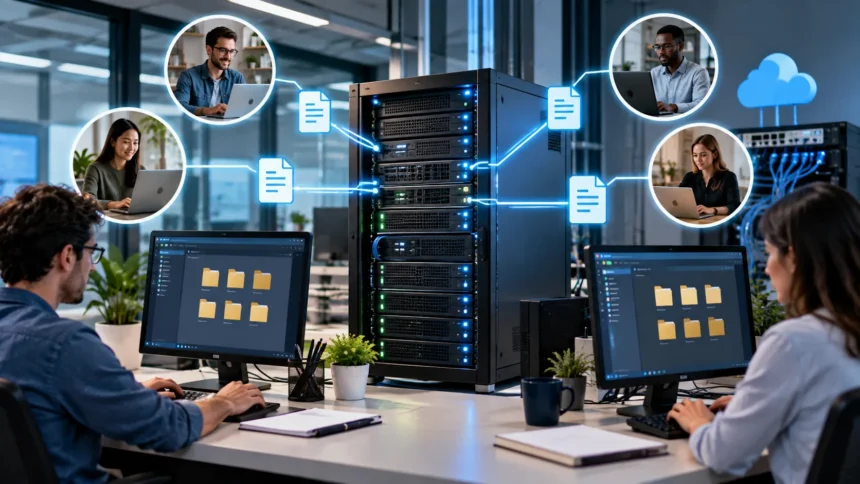
File Server: How It Works, Benefits & Examples
A file server is a centralized system that stores, manages, and shares files across a network so multiple users or devices can access the same information securely. Businesses use file servers to organize documents, project files, images, databases, backups, and other digital resources that employees need during daily work. Instead of keeping important files scattered across individual laptops, a file server creates one controlled location where authorized users can find and update them. This approach can improve collaboration, reduce duplication, and make backup management easier. File servers may operate on physical hardware, virtual machines, network-attached storage devices, or cloud infrastructure. The basic purpose remains the same: providing reliable, organized, and controlled access to shared data.
Modern file servers are more flexible than the traditional server rooms many people imagine. Organizations can run an on-premises Windows or Linux file server, use a dedicated NAS device, create a virtual file server in a data center, or rely on cloud-based file storage. Hybrid environments are also common, especially when companies want local performance while maintaining off-site backup or remote access. Security features such as user permissions, encryption, authentication, auditing, and ransomware protection have become increasingly important as business data grows more valuable. Understanding how file servers work can help organizations decide whether centralized file storage fits their requirements. This guide explains file server architecture, protocols, benefits, examples, security, cloud alternatives, and best practices.
What Is a File Server?
A file server is a computer or network service specifically configured to store files and make them available to other computers over a network. Users typically connect to shared folders rather than saving every document only on their local device. Depending on permissions, they may be allowed to open, create, edit, rename, move, or delete files stored on the server. The server manages those requests and controls who can access which resources. In business environments, different departments often receive separate shared folders based on their responsibilities. This centralized approach makes information easier to organize because employees know where approved versions of important files should be stored.
Unlike a normal desktop computer, a dedicated file server is usually designed for continuous access by multiple users. It may include higher-capacity storage drives, redundant power supplies, faster network connections, additional memory, and data protection technologies such as RAID. The operating system can also be configured specifically for file sharing and permission management. Common environments include Windows Server, Linux-based servers, network-attached storage appliances, and virtualized systems. A small business may use one compact NAS as its primary file server, while a large enterprise may operate multiple servers across different offices. The exact hardware varies according to user count, performance needs, data volume, and budget.
The main idea behind a file server is centralization. Without centralized storage, employees may keep separate copies of the same spreadsheet, contract, presentation, or design file on different computers. Those copies can quickly become inconsistent because nobody knows which one is current. A shared file server helps reduce this problem by giving teams a common location for official working files. Permissions can limit editing rights so only appropriate users can make changes. Although version control and document collaboration platforms can provide more advanced capabilities, a file server remains useful for shared storage where simple folder-based access is sufficient.
A file server does not necessarily need to be located inside the same office as its users. Remote offices can access centralized file servers through secure network connections, virtual private networks, software-defined networking, or cloud connectivity. Cloud file servers may provide similar folder structures while the underlying storage runs in a remote data center. This makes the term “file server” more about function than physical location. Whether the system sits in a server rack, a branch office, a virtual machine, or a cloud environment, it acts as the shared storage point. The design should still account for speed, security, availability, backup, and recovery.
File servers are commonly used by businesses, schools, government organizations, healthcare providers, creative teams, engineering departments, and other groups that manage shared digital information. They are particularly valuable when employees work with large files that are difficult to send repeatedly by email. Designers may store high-resolution media, while engineers can keep project drawings and technical documents in shared directories. Administrative teams may use file servers for forms, reports, and internal records. The technology is relatively mature, but its usefulness remains strong because organizations continue to need dependable ways to organize and share files. The challenge is choosing the right architecture and managing it securely.
How Does a File Server Work?
A file server works by receiving file requests from client devices over a network. The client might be a desktop computer, laptop, workstation, virtual desktop, or another server. When a user opens a shared folder, their device sends a request using a supported file-sharing protocol. The file server checks the user’s identity and permissions before returning directory information or file data. If the user is authorized to edit a document, the server accepts changes and writes them to storage. This client-server model allows many people to work with centrally stored files without physically accessing the server itself.
Authentication is an important part of the process because the server needs to know who is making each request. In business environments, file servers are often connected to centralized identity systems so employees can use their normal work accounts. Once authenticated, access control lists or other permission settings determine what each person can do. One employee may have read-only access to a folder, while another can modify its contents. Finance files can be restricted to finance staff, while company-wide templates may be readable by everyone. Proper permissions prevent users from accessing sensitive files simply because they are connected to the same network.
File transfer occurs through network protocols that define how clients and servers communicate. Server Message Block, commonly known as SMB, is widely used for Windows-oriented file sharing and also works with other operating systems. Network File System, or NFS, is common in Linux and Unix environments. Some systems may also use SFTP or other secure transfer methods depending on the use case. These protocols handle tasks such as listing folders, opening files, requesting file attributes, locking files, and writing changes. Selecting an appropriate protocol helps ensure compatibility and performance across different devices and applications.
The server stores the actual data on attached storage, which may include hard drives, solid-state drives, storage arrays, or networked storage systems. Enterprise environments often use multiple drives configured for performance and redundancy rather than relying on a single disk. The operating system maintains the file system structure, including folders, filenames, permissions, timestamps, and storage allocation. When users request a file, the server reads the necessary data from storage and sends it over the network. Faster storage and networking can significantly improve performance when many users access large files simultaneously. Capacity planning is therefore essential as an organization grows.
File servers also rely on supporting systems such as backups, monitoring, antivirus tools, logging, and disaster recovery processes. Centralization makes backup easier because administrators can protect important company files from one managed location. However, centralization also creates risk if the server becomes unavailable or compromised. Organizations therefore need redundant storage, backups, access controls, and recovery procedures. Monitoring can alert administrators when storage is nearly full, hardware begins failing, or unusual file activity occurs. A well-designed file server is not simply a large hard drive connected to the network; it is a managed service supported by availability, security, and recovery controls.
Common File Server Types and Examples
An on-premises file server is one of the most traditional configurations. In this model, an organization owns or leases physical server hardware located in its office or data center. The server connects to the internal network, and employees access shared folders using their workstations. This arrangement gives the organization direct control over hardware, storage capacity, operating systems, and security policies. It can also provide excellent performance for employees working in the same building, especially when large files are transferred frequently. However, the company is responsible for maintenance, electricity, hardware replacement, backups, physical security, and disaster recovery.
A network-attached storage device, commonly called a NAS, is another popular type of file server. NAS devices are designed specifically for network storage and usually include multiple drive bays, a simplified operating system, and built-in file-sharing features. Small and medium-sized businesses often choose NAS systems because they can be easier to deploy and maintain than full general-purpose servers. Users can access shared folders through protocols such as SMB or NFS, while administrators manage permissions through a web interface. Many NAS platforms also support snapshots, backups, cloud synchronization, and remote access. Their suitability depends on performance, security, scale, and availability requirements.
Virtual file servers run as virtual machines rather than dedicated physical computers. A business may create a Windows Server or Linux virtual machine inside a virtualization platform and assign virtual disks for file storage. This approach makes it easier to move, back up, resize, or recover the server compared with traditional physical hardware. Several virtual file servers can run on the same physical infrastructure while remaining logically separated. Virtualization is common in enterprise data centers because it improves hardware utilization and operational flexibility. However, administrators still need to protect the underlying hosts, storage systems, and virtualization environment to maintain reliability.
Cloud file servers provide centralized file access using infrastructure hosted by a cloud provider. Organizations can create virtual machines with attached cloud storage or use managed file services that handle much of the infrastructure automatically. Cloud systems can make it easier to support remote teams, expand storage capacity, and replicate data across locations. They may also reduce the need to purchase physical server hardware. However, cloud file storage introduces ongoing subscription or usage costs and depends heavily on network connectivity. Security configuration is still the customer’s responsibility in many areas, particularly identity management, permissions, encryption, and data retention.
Hybrid file server environments combine local storage with cloud services. A company might keep frequently used files on a local server for speed while automatically backing up or synchronizing selected data to the cloud. Another organization may maintain local servers at major offices while giving remote employees access through cloud-based file platforms. Hybrid architecture can help businesses balance performance, availability, remote access, and disaster recovery requirements. It can also provide a gradual migration path for organizations that are not ready to move all data into the cloud. The main challenge is managing synchronization, permissions, duplicate data, and security consistently across both environments.
Key Benefits of Using a File Server
Centralized storage is one of the biggest benefits of a file server. When employees save important business files in one managed location, administrators have greater control over where data resides and how it is organized. Teams spend less time searching through individual computers, email attachments, or USB drives for the latest version of a document. Centralized folders can follow standardized naming and departmental structures that make information easier to locate. This approach also simplifies onboarding because new employees can be given access to existing shared resources quickly. Centralization is particularly valuable when documents need to remain available even if the original employee who created them leaves the company.
File servers can also improve collaboration by making shared resources available to multiple users. Employees can access project files without repeatedly emailing large attachments or manually copying data between devices. A marketing team might share graphics and campaign documents, while an engineering group stores drawings and technical files in a common folder. Access permissions can ensure that everyone sees the information they need without exposing confidential material unnecessarily. Some file systems also support file locking, which helps prevent two people from overwriting each other’s changes simultaneously. Although modern collaboration platforms offer richer real-time editing, traditional file servers remain effective for many shared-storage workflows.
Data backup becomes easier when important information is stored centrally. Instead of trying to protect dozens or hundreds of employee laptops individually, administrators can focus backup systems on the main file server and related storage infrastructure. Scheduled backups can copy data to another server, removable media, an off-site location, or cloud storage. Snapshots may provide faster recovery from accidental deletions or ransomware damage when configured properly. Centralized backup does not eliminate the need to protect endpoints, but it can significantly simplify business data recovery. Organizations should still test backups regularly because a backup that cannot be restored provides little practical protection.
Security management can also become more consistent with a well-configured file server. Administrators can create user groups and apply permissions according to job responsibilities rather than relying on employees to protect files manually. Sensitive folders can be restricted to approved departments, while public company resources remain accessible more broadly. Audit logs can record access attempts and file changes depending on the system’s capabilities. Encryption can protect data during transfer and, in many environments, while stored on disk. Centralized policies make it easier to enforce security rules, although incorrect permissions can still expose sensitive information if administrators are not careful.
Scalability is another advantage when the system is designed correctly. Organizations can add storage capacity, faster drives, additional servers, or higher network bandwidth as their requirements grow. Virtual and cloud file servers can often be expanded without replacing an entire physical system. Larger businesses may use distributed file systems or clustered servers to support thousands of users across different locations. Capacity planning should consider both current needs and expected growth because storage demand can increase quickly. A scalable file server strategy allows businesses to expand without completely redesigning how employees access shared information every time data volumes rise.
File Server vs NAS vs Cloud Storage
A traditional file server and a NAS can perform many of the same basic functions, but they differ in flexibility and complexity. A general-purpose server can run additional applications, integrate deeply with enterprise identity systems, and support highly customized configurations. A NAS is usually optimized primarily for storage and file sharing, which can make setup easier for smaller organizations. Both can provide shared folders, permissions, backups, and network access. The best choice depends on business requirements rather than one technology being universally superior. A small office with straightforward storage needs may prefer a NAS, while a large enterprise may require more sophisticated server infrastructure.
Cloud storage differs because the underlying infrastructure is hosted by a third party rather than maintained entirely by the organization. Users may access files through web browsers, desktop synchronization clients, mobile apps, or network-style interfaces. Services built for collaboration can also offer features such as version history, simultaneous editing, comments, and link sharing. Traditional file servers usually provide more familiar mapped-drive or folder-based workflows. Cloud storage can be especially attractive for distributed teams because files remain accessible from many locations. However, administrators must carefully manage accounts, sharing permissions, data residency, and subscription costs.
Performance can influence the choice between local file servers and cloud storage. Employees working with very large video, design, engineering, or scientific files may experience faster access when storage is located on a high-speed local network. Uploading and downloading those files through an internet connection may introduce delays, especially when bandwidth is limited. Cloud systems can still perform well for normal office documents and geographically distributed users. Some businesses use caching or synchronization technology to improve remote performance. Understanding actual file sizes, user locations, and network capabilities is therefore essential before selecting an architecture.
Control is another important distinction. An on-premises server gives organizations extensive control over hardware, operating systems, network configuration, and physical storage. That control can be beneficial for specialized applications or strict internal requirements, but it also creates greater maintenance responsibility. Cloud providers manage much of the underlying infrastructure, reducing the burden of hardware replacement and physical data center operations. Customers still remain responsible for many configuration and access decisions. A poorly configured cloud storage environment can expose data just as easily as a poorly secured local file server. The security model changes rather than disappearing.
Many organizations ultimately choose a combination rather than selecting only one option. A hybrid environment might use a NAS for local creative files, a traditional file server for legacy applications, and cloud storage for remote collaboration. Different workloads have different requirements, so forcing every file into the same platform may not be efficient. The key is creating clear rules about where data belongs and how it is protected. Users should understand which system is the official location for each type of file. Without those guidelines, hybrid environments can create duplicate data, inconsistent permissions, and confusion about which version is authoritative.
File Server Security and Common Risks
Unauthorized access is one of the most important file server risks. If permissions are too broad, employees may be able to view confidential financial records, customer information, intellectual property, or human resources documents that are unrelated to their jobs. Organizations should apply the principle of least privilege, meaning users receive only the access necessary for their responsibilities. Group-based permissions are generally easier to manage than assigning rights individually to hundreds of users. Access should also be reviewed when employees change roles or leave the organization. Old accounts and unnecessary permissions can create security gaps long after they were originally created.
Ransomware represents another serious threat because file servers often contain large volumes of valuable organizational data. If an infected user account has write access to shared folders, malicious software may encrypt files on the server as well as the user’s computer. Backups, snapshots, endpoint protection, network segmentation, and strong authentication can reduce the impact of such attacks. Backups should be isolated enough that ransomware cannot easily encrypt or delete them. Organizations should also test recovery procedures instead of assuming backups will work during an emergency. Fast recovery can significantly reduce operational disruption after a destructive incident.
Weak passwords and stolen credentials can allow attackers to access file shares even when the server itself has no software vulnerability. Multi-factor authentication can strengthen access where supported, especially for remote connections and administrative accounts. Administrators should avoid exposing file-sharing services directly to the public internet without appropriate protective controls. Secure VPNs, zero-trust access solutions, or managed remote-access systems are generally safer than simply opening network ports. Login monitoring can also help identify unusual activity such as repeated failed attempts or access from unexpected locations. Identity security has become just as important as protecting the storage hardware itself.
Unpatched operating systems and outdated network services create additional risk. File-sharing protocols have historically been targeted by malware because vulnerable servers can provide access to many valuable files at once. Organizations should apply security updates according to a documented patch-management process and disable old protocols that are no longer required. Legacy systems can be particularly difficult because business applications may depend on outdated software. In such cases, segmentation and compensating controls become important until the system can be upgraded or replaced. Regular vulnerability assessments help identify weaknesses before attackers exploit them.
Physical and environmental risks should not be ignored when servers are kept on-site. Fire, flooding, electrical problems, theft, overheating, and hardware failure can destroy data even when cybersecurity controls are strong. Server rooms should have appropriate power protection, cooling, access restrictions, and monitoring based on business needs. Off-site backups provide an important layer of protection if an entire location becomes unavailable. Cloud replication may also support disaster recovery, although configuration and recovery time must be planned carefully. Effective file server security therefore combines cybersecurity, identity controls, backups, physical protection, and operational preparedness.
How to Set Up a File Server for a Business
The first step in planning a file server is understanding the organization’s requirements. Administrators should estimate how much storage is needed today and how quickly that amount is likely to grow. They should also identify how many people will use the system, what types of files they work with, and how large those files typically are. A server supporting ten office employees has very different needs from one serving hundreds of video editors or engineers. Availability requirements also matter because some businesses can tolerate several hours of downtime while others need continuous access. A clear requirements assessment prevents both overspending and underpowered designs.
Hardware and storage should then be selected according to workload requirements. Traditional servers may use enterprise-class drives, SSDs, RAID configurations, redundant power supplies, and high-speed network interfaces. A NAS can simplify these decisions by providing integrated hardware and storage management. Organizations choosing virtual or cloud file servers need to select appropriate virtual CPU, memory, storage performance, and network capacity. Storage should include enough headroom for growth rather than operating permanently near maximum capacity. Performance planning should also account for peak usage, not just average activity during quiet periods.
The operating system and file-sharing software must support the devices used by employees. Windows-oriented environments often rely heavily on SMB and centralized directory services. Linux environments may use NFS, Samba, SFTP, or combinations of protocols depending on client requirements. Administrators should create a logical folder structure before users begin uploading data. Departmental folders, project directories, archives, and shared company resources should have clear ownership. Naming conventions can also reduce confusion as the system grows. A well-organized structure is easier to secure, search, back up, and maintain than a single massive shared folder.
Permissions should be configured before broad access is granted. Administrators can create security groups based on departments or job functions and assign folder access to those groups. Users should normally receive the minimum level of access required, whether read-only, modify, or full administrative control. Sensitive folders may require additional restrictions and auditing. Test accounts can help verify that permissions behave as expected before the server is released to employees. This testing is important because complex inherited permissions can sometimes produce unexpected access. Documentation should explain who owns each major folder and who approves future permission changes.
Finally, backup, monitoring, security, and maintenance should be configured before the system is considered production-ready. Backup schedules should match how frequently important files change and how much data the business can afford to lose. Restore procedures should be tested using sample files and, ideally, full recovery scenarios. Monitoring should track storage capacity, disk health, server availability, network performance, and suspicious activity. Antivirus or endpoint security tools should protect supported server environments, while patches should be applied regularly. A file server should be treated as an ongoing business service rather than a device that can be installed once and forgotten.
File Server Best Practices for Performance and Reliability
Capacity management is fundamental to reliable file server performance. Storage systems can slow down or fail to operate correctly when available space becomes critically low. Administrators should monitor both current utilization and historical growth so they can expand capacity before reaching dangerous limits. Large temporary files, duplicate data, outdated archives, and forgotten backups can consume significant space unnecessarily. Storage quotas may help prevent individual users or departments from filling an entire volume. However, quotas should reflect legitimate workload requirements rather than creating constant interruptions. Proactive monitoring is much easier than responding to an emergency when users can no longer save files.
Network performance also has a major impact on the user experience. A fast server cannot deliver large files efficiently if the network connection between users and storage is overloaded. Organizations should evaluate switch capacity, network interface speeds, Wi-Fi performance, internet bandwidth for remote users, and latency between offices. High-performance environments may use faster Ethernet connections or dedicated storage networks. Remote sites may benefit from caching or local replicas when repeatedly transferring the same large files over long distances. Monitoring real network utilization helps distinguish storage problems from connectivity problems when users report that the file server feels slow.
Redundancy can reduce downtime caused by individual component failures. RAID can provide protection against certain disk failures, but it should never be confused with a complete backup. Redundant power supplies, network paths, storage controllers, and clustered servers can improve availability for critical workloads. The appropriate level of redundancy depends on how much downtime the organization can tolerate. A small office may accept a simpler design, while a hospital or global enterprise may require much stronger availability controls. Businesses should define recovery time objectives before choosing expensive infrastructure. Reliability investments are easier to justify when they correspond to measurable operational risks.
Regular maintenance prevents small problems from developing into larger outages. Administrators should review logs, verify backups, apply patches, replace failing drives, update firmware, and check storage health periodically. Old user accounts and unused shared folders should also be reviewed because they increase administrative complexity and potential security exposure. File systems may require specific maintenance activities depending on the operating system and storage platform. Automated alerts can notify administrators about failing hardware or low capacity before users are affected. Documenting routine maintenance creates consistency when responsibilities move between IT staff or service providers.
Disaster recovery planning is the final layer of reliability. Organizations should assume that a major failure can eventually occur, whether caused by ransomware, hardware damage, human error, or a site-level disaster. Backups should exist in more than one location and should include protection against accidental deletion or malicious modification. Recovery plans need clear instructions for restoring critical folders, rebuilding server services, and reconnecting users. Testing those plans reveals missing passwords, outdated procedures, insufficient bandwidth, or corrupted backups before a real crisis occurs. A dependable file server environment is defined not only by how rarely it fails, but also by how confidently it can be recovered.
Frequently Asked Questions About File Servers
What is a file server?
A file server is a computer or network service that stores files centrally and allows authorized users or devices to access them over a network. It is commonly used for shared business documents, project data, media, backups, and other digital resources.
How does a file server work?
A client device sends a request to the file server using a network protocol such as SMB or NFS. The server verifies permissions, retrieves the requested data from storage, and sends it back to the authorized user.
What is an example of a file server?
A Windows Server hosting shared departmental folders is a common example. A NAS device providing shared storage to employees can also function as a file server.
What is the difference between a file server and a NAS?
A NAS is a specialized device designed primarily for storage and file sharing, while a traditional file server is usually a more general-purpose computer that can provide additional services. Both can offer shared folders, user permissions, and centralized storage.
What is the difference between a file server and cloud storage?
A traditional file server may run locally on company hardware, while cloud storage operates on infrastructure hosted by a provider. Cloud platforms often make remote access and collaboration easier, while local servers may offer greater control and faster local-network performance.
What protocols do file servers use?
Common file server protocols include SMB and NFS. Some environments also use SFTP or other secure transfer protocols depending on operating systems and business requirements.
Are file servers secure?
File servers can be highly secure when they use strong authentication, least-privilege permissions, encryption, regular updates, backups, monitoring, and network protection. Poor configuration can still expose sensitive data, so ongoing administration is essential.
Can a file server be hosted in the cloud?
Yes. Businesses can run virtual file servers on cloud infrastructure or use managed cloud file services that provide shared network storage without maintaining physical server hardware.
Does a small business need a file server?
Not every small business needs a traditional server, but centralized storage can be useful when several employees regularly share important files. A NAS or cloud file storage platform may sometimes be simpler and more cost-effective than a dedicated physical server.
Is RAID the same as a backup?
No. RAID can help maintain access when certain drives fail, but it does not protect against ransomware, accidental deletion, corruption, theft, or major disasters. Separate, tested backups are still necessary.