How to Play Netflix Games on TV: A Complete Setup Guide
Netflix is no longer limited to films, series and documentaries. The platform now offers selected games that can run directly through compatible smart TVs and streaming devices, allowing members to play on a larger screen without purchasing a traditional games console.
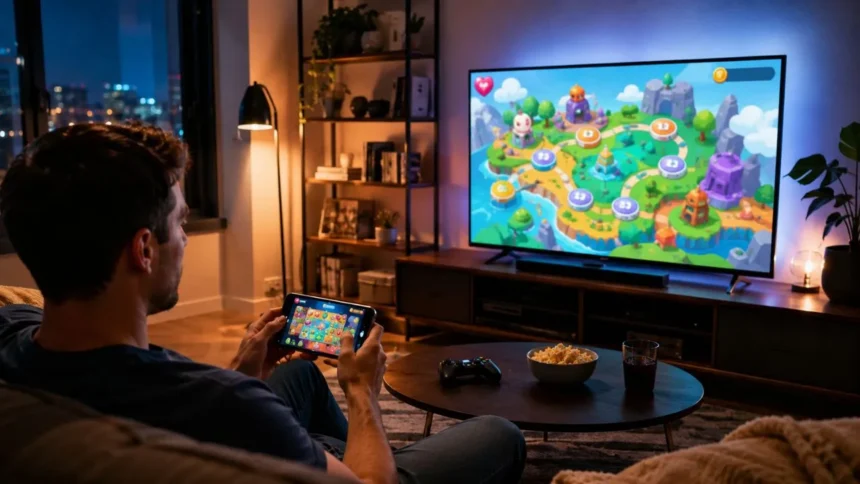
Playing Netflix games on TV works differently from downloading a game on a smartphone. The game runs through the Netflix experience on your television, while your phone or tablet normally becomes the controller after you scan a QR code displayed on the screen.
The feature is still being expanded and may not appear on every account, television or streaming device. Netflix describes TV gaming as a beta experience, and availability currently depends on your country, device model, manufacturing year and installed software.
This guide explains how to play Netflix games on TV, connect the Netflix Game Controller, check whether your device is compatible and solve common issues involving missing games, QR codes, lag and disconnected controllers.
Can You Play Netflix Games on a TV?
Yes, Netflix members in supported countries can play selected Netflix games on compatible TVs and television streaming devices. The simplest way to confirm access is to open Netflix and check whether a Games option appears near the top of the television screen.
The feature is not available on every television that can stream Netflix programmes. A device may support films and series but lack the hardware or software needed to stream interactive games, especially when it is an older smart TV model.
Netflix TV games are currently available in 20 countries, including the United Kingdom, United States, Canada, Australia, France, Germany, Spain, Italy and several other supported markets. Netflix says more countries may be added as the service develops.
The TV games are streamed rather than installed as large applications on the television. This cloud-based approach reduces the need for storage space, although it makes a fast and stable internet connection particularly important for smooth gameplay.
What Do You Need to Play Netflix Games on TV?
You need an active Netflix membership, a compatible smart TV or television streaming device and the latest available version of the Netflix app. The device must also be located in a country where Netflix currently provides its TV gaming beta.
A stable internet connection is essential because the game is delivered over the internet while you play. Netflix recommends a download speed of at least 10 Mbps, although a faster and more reliable connection may help when several devices are using the network simultaneously.
You will also need an Android phone, Android tablet, iPhone or iPad to use as the controller. Every person joining a multiplayer game generally needs a separate supported mobile device, so a four-player game may require four phones or tablets.
Android users need the Netflix app installed on the controlling device. iPhone and iPad users currently need iOS or iPadOS 17 or later and may be directed to install the Netflix Game Controller app during the connection process.
How to Check Whether Your TV Supports Netflix Games
Open the Netflix app directly on your smart TV or connected streaming device. Sign in to your account, select a suitable profile and examine the navigation area at the top of the Netflix home screen.
When a Games option appears, your current device and account can access Netflix TV games. Select the option to view the available titles, game categories and party games currently supported on your television.
When you do not see the Games section, confirm that your country is included in Netflix’s supported-market list. The feature will not normally appear when your account or device is being used in a market where TV games have not yet launched.
You can also visit Netflix’s Manage Access and Devices area and turn on the option that shows devices compatible with games. When your television appears as supported but the Games tab is missing, update its operating system and Netflix application.
How to Play Netflix Games on TV Step by Step
Begin by opening the Netflix app on your television and selecting the profile you want to use. The profile can affect which titles appear because maturity restrictions may hide games intended for older players.
Choose Games from the top of the screen and browse the available titles. Select the game you want to try and look for a button labelled Play Game to launch the television version.
After the game starts, move beyond the opening screen when necessary until a QR code appears. Some games show the code immediately, while others display it after an introduction or player-selection screen.
Scan the QR code with your phone or tablet and follow the instructions to connect it as a controller. Once the connection is complete, the mobile screen will display the buttons, movement controls or gestures required for the selected game.
How to Use an Android Phone as a Netflix Controller
Launch the game on the TV and wait for its controller QR code to appear. Open the standard Camera application on your Android phone or tablet and point it towards the code.
Hold the device steady until a link appears on the phone screen. Tap the link, and install the Netflix mobile application when it is not already available on your Android device.
After installing the app, you may need to scan the TV’s QR code again. The phone should then connect to the game and change into a touchscreen controller designed for that particular title.
Keep the phone awake during gameplay because allowing its screen to switch off can disconnect the controller. Place the device on a charger when its battery is low, especially before beginning a longer multiplayer session.
How to Use an iPhone or iPad as a Controller
Start the Netflix game on your television and display the connection QR code. Open the built-in Camera application on your iPhone or iPad and point it towards the code.
Tap the notification or link that appears after the camera recognises the code. The connection should open through Netflix’s controller experience or direct you to install the Netflix Game Controller application when required.
Your iPhone or iPad must currently use iOS or iPadOS 17 or a later supported version. Older Apple devices that cannot install the required operating system may not work as Netflix TV game controllers.
Once connected, follow the controls shown on the mobile screen. Some titles use virtual buttons, while others may use swipes, taps or the physical movement of the phone as part of the gameplay.
Can You Use a Gamepad or TV Remote?
Netflix currently requires a phone or tablet to act as the controller for TV games. Traditional physical gamepads, including common Bluetooth gaming controllers, are not officially supported through the TV gaming experience at this time.
The television remote is mainly used to open Netflix, browse the Games section, select a title and move through early menus. Once the actual game begins, most titles require the controls displayed on the connected mobile device.
This approach makes Netflix games more accessible to households that do not own gaming hardware. Most members already have access to at least one smartphone, removing the need to purchase a console controller for casual games.
However, touchscreen controls may feel less precise than a physical gamepad, particularly during fast action or sports titles. Netflix may expand controller support in the future, but users should not purchase a gamepad solely for Netflix TV gaming without checking current guidance.
How to Play Netflix Multiplayer and Party Games
Netflix offers party games intended for families, friends and groups playing in the same room. These games turn each participant’s phone into a private controller while the main action appears on the television.
Select a multiplayer title from the Games or Party Games section and launch it normally. The television should display instructions explaining how many players can join and when each person should connect a mobile controller.
Every player scans the displayed QR code using their own phone or tablet. The game assigns each connected device a player position, character, drawing area or set of private choices, depending on how the title works.
Netflix has expanded its TV selection with games such as LEGO Party!, Pictionary: Game Night, Boggle Party, Tetris Time Warp and Party Crashers. It has also released FIFA World Cup: Launch Edition for supported TV and browser gaming experiences.
Are Netflix Games Free With a Membership?
Netflix games are included as part of a Netflix membership in markets where the feature is supported. Members do not need to purchase an additional gaming package or pay separately each time they launch a game.
Netflix states that its games do not include third-party advertisements, separate gaming fees or in-app purchases. This means players are not repeatedly asked to buy extra lives, virtual coins, cosmetic items or upgrades during play.
The exact games you can access may depend on your country, device, profile maturity setting and availability at the time. Individual titles may be added, updated, temporarily removed or limited to particular platforms.
Normal Netflix subscription costs still apply, and internet data usage may matter for people using a limited broadband or mobile-data plan. Streaming games for long periods can use more data than simple menu browsing.
What Is the Difference Between TV and Mobile Netflix Games?
Netflix mobile games are applications downloaded from the Apple App Store or Google Play Store. They run directly on the phone or tablet and can often be opened from the mobile device’s home screen after installation.
Netflix TV games are streamed through the television’s Netflix application rather than downloaded from the TV’s app store. The television displays the game, while a connected phone or tablet provides the controls.
Not every Netflix mobile game is available on television. When a title does not display a Play Game button on the TV, it may be designed only for mobile devices and cannot be launched through the television gaming beta.
This distinction explains why you might see a large game library on your phone but only a smaller selection on the television. Netflix is gradually developing more titles specifically suited to large-screen, cloud-based and local multiplayer play.
Can You Play Netflix Games on a Computer?
Netflix also allows members in supported markets to play selected games through a computer browser. Open Netflix in an updated version of Chrome or Microsoft Edge, select your profile and click Games at the top of the page.
Select a compatible title and click Play Game. When the button does not appear, the title is probably a mobile-only game that must be downloaded and played on an Android or Apple mobile device.
Depending on the game, you may control it with a keyboard and mouse or scan a QR code to connect your phone as a controller. The available input method should appear when the game starts.
Computer gaming can be useful when your television does not support Netflix games. You may also connect a compatible computer to a television through HDMI, although performance and display behaviour depend on the computer and TV setup.
Why Is There No Games Tab on Netflix TV?
The most common explanation is that the television or streaming device does not currently support the feature. Netflix gaming may require newer hardware even when the same device can still stream films and television programmes without problems.
The Games tab may also be missing because TV gaming has not launched in your country. Netflix continues to call the service a beta experience, so access is not yet global or identical across every member account.
Check for updates to the television software, streaming-device firmware and Netflix application. An outdated version may prevent newly released Netflix features from appearing even when the hardware is otherwise compatible.
When your device appears as gaming-compatible through Manage Access and Devices, restart it after updating. Sign out and back into Netflix only when a simple restart does not refresh the interface.
Why Does a Netflix Game Not Have a Play Button?
A game without a Play Game button may be available only as a downloadable mobile title. Netflix uses the same service to present mobile, television and browser games, but each game does not necessarily support every platform.
Return to the Games section and choose another title that clearly displays the play button. Party games and other titles designed specifically for television are more likely to provide direct large-screen support.
The game may also have been temporarily removed for maintenance, an update or a technical problem. Netflix states that games can occasionally disappear from the available list while fixes or service work are being completed.
Profile maturity restrictions can hide games as well. Switch to an appropriate adult profile or review the parental-control settings rather than assuming the game has been completely removed from Netflix.
How to Fix a QR Code That Will Not Scan
Clean the phone’s camera lens and increase the television brightness when the QR code appears blurred or difficult to recognise. Move closer or farther away until the complete code fits clearly within the camera frame.
Use the phone’s built-in Camera application instead of a third-party QR scanner. On an iPhone or iPad, you may also scan through the Netflix Game Controller app when the normal camera is not recognising the link.
Check that the camera application has permission to access the camera. Without this permission, Netflix cannot read the controller code, even if the QR image is clearly visible on the television.
Refresh the game or return to the previous screen to generate the QR code again when it appears expired. Restarting the Netflix application on the television can also clear a connection session that failed during the first attempt.
How to Fix a Controller That Keeps Disconnecting
The controller may disconnect when your phone or tablet locks or turns its screen off. Adjust the screen timeout temporarily or tap the device occasionally during pauses to keep the controller active.
When the connection drops, wake the phone and wait briefly for it to reconnect. You may need to scan the QR code again if the previous game-controller session has completely ended.
Disable an active VPN on the mobile device because it can interfere with communication between the controller and Netflix gaming session. Netflix specifically recommends testing the connection without a VPN when disconnections continue.
Try switching between Wi-Fi and mobile data on the controller. A stable Wi-Fi connection is generally preferable, especially when poor mobile reception causes delayed controls or frequent reconnection attempts.
How to Reduce Lag While Playing Netflix Games
Cloud gaming responds to your controls through an internet connection, so network delay can make actions feel slow. A stable connection is often more important than achieving an extremely high maximum speed.
Place the router close to the television or streaming device, ideally within the same room. Keep it in an open location rather than behind furniture, inside a cabinet or beside equipment that may interfere with the wireless signal.
Pause large downloads, video calls and high-resolution streaming on other household devices while playing. These activities can compete for bandwidth and cause lower image quality, stuttering or delayed controller responses.
When Netflix displays an unstable-connection warning, restart the router and gaming device. Netflix recommends unplugging the modem and router, waiting approximately 30 seconds, reconnecting them and trying the game again after the network is restored.
Can Children Play Netflix Games on TV?
Children can play suitable Netflix games through profiles with appropriate maturity settings. The game selection shown on a profile is influenced by the maximum maturity level chosen for that profile.
A child profile may not display a game when its rating is above the permitted level. This gives parents a way to limit access without needing to monitor every game title individually.
Parents can adjust profile restrictions through Netflix’s account and parental-control settings. Choose limits appropriate for the child’s age, and protect adult profiles with a PIN when necessary.
Maturity settings control which games appear, but they do not replace supervision. Parents should still consider the game’s subject, difficulty, multiplayer features and amount of screen time that is suitable for their household.
Is Playing Netflix Games on TV Worth It?
Netflix TV gaming is useful for casual players who want quick entertainment without buying a games console. The setup is simple when a compatible television, stable connection and modern smartphone are already available.
The service is particularly appealing for local party games. Guests can join with their own phones, and the television becomes a shared game board without requiring several expensive physical controllers.
The experience may be less suitable for competitive or dedicated players who prefer physical gamepads, highly responsive controls and a large selection of complex titles. Netflix currently focuses more heavily on approachable, social and accessible experiences.
Because the games are included with an existing membership and contain no in-app purchases, there is little financial risk in trying them. Open the Games tab, test several titles and decide whether the controller and streaming performance suit your household.
Conclusion
To play Netflix games on TV, open the Netflix application on a compatible device and select the Games option. Choose a title with a Play Game button and launch it from the television screen.
When the QR code appears, scan it using an Android phone, iPhone or tablet. The mobile device will connect to the television and become the controller for the game.
Every multiplayer participant normally needs a separate phone or tablet. Physical gamepads are not currently supported, although the television remote can still be used to browse Netflix and exit the game.
When the Games tab is missing, check your country, TV compatibility and software updates. Restart the television and network when gameplay freezes, and keep mobile controllers awake to prevent unexpected disconnections.
Frequently Asked Questions
Can I play Netflix games directly on my smart TV?
Yes, selected games can run through compatible smart TVs and streaming devices. Open Netflix and check for a Games option at the top of the home screen.
Do I need a controller for Netflix TV games?
You need a supported phone or tablet for each player. Physical gamepads are not currently supported for Netflix games played through the television.
Why can’t I find games on my Netflix TV app?
Your television may be unsupported, outdated or located outside a current gaming market. Update the app and device software, then check Netflix’s compatible-device settings.
Are Netflix TV games included in my subscription?
Yes, supported Netflix games are included with your membership. They do not have advertisements, separate gaming fees or in-app purchases.
Can I play every Netflix mobile game on my TV?
No. Many games are available only as mobile downloads. A TV-compatible title will normally show a Play Game button inside the television’s Games section.