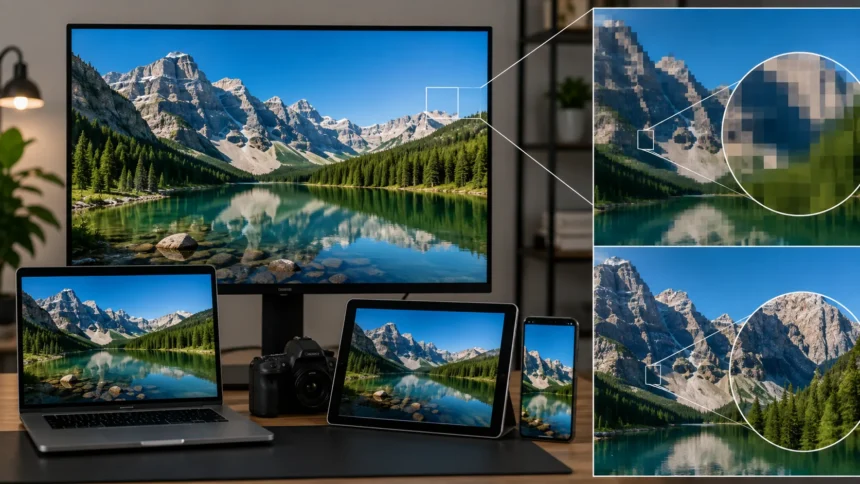
Resolution Meaning: Pixels, Images & Displays Explained
Resolution is one of the most common terms used when discussing screens, digital images, cameras, televisions, monitors, smartphones, printers, and video. You may see numbers such as 1920 × 1080, 2560 × 1440, or 3840 × 2160 listed in product specifications and assume that bigger numbers automatically mean better quality. In reality, resolution describes how much visual information can be represented, but it is only one part of image or display quality. Screen size, pixel density, viewing distance, image source, compression, scaling, and panel quality also influence what you actually see. Understanding resolution therefore helps you compare devices more intelligently. It can also prevent confusion when editing photos, buying a monitor, or exporting graphics.
The basic concept is straightforward: digital images and displays are constructed from tiny picture elements called pixels. Resolution usually tells you how many of those pixels are arranged horizontally and vertically. A Full HD display, for example, commonly contains 1920 pixels across and 1080 pixels from top to bottom. Multiplying those numbers gives the total number of pixels available to form the image. More pixels can provide additional detail when other conditions are favorable, particularly when the pixels are packed densely enough to be difficult to distinguish individually. However, increasing resolution does not automatically improve color accuracy, contrast, brightness, or motion performance. Those qualities are measured separately.
Resolution can also mean slightly different things depending on whether you are talking about a screen, photograph, printed image, scanner, or digital video. A smartphone display may be described by pixel dimensions and pixels per inch, while a printed photograph may involve dots per inch and print dimensions. Camera marketing often uses megapixels, which measure the total number of pixels captured by an image sensor rather than the dimensions of a display. These concepts are related but should not be treated as interchangeable. This guide explains resolution meaning in practical language, covering pixels, image resolution, screen resolution, PPI, DPI, common display standards, scaling, and the factors that actually determine perceived sharpness.
What Does Resolution Mean in Computing and Digital Media?
Resolution describes the amount of visual detail that a digital image, display, or imaging system can represent. In the context of screens, it is usually expressed as the number of pixels arranged horizontally and vertically, such as 1920 × 1080. The first number indicates the pixel count across the width, while the second represents the pixel count from top to bottom. Together, those pixels create the grid used to display text, photographs, videos, interfaces, and graphics. A larger pixel grid can represent finer details because more individual points are available to construct the picture. However, the real-world sharpness depends on how those pixels are distributed across the physical display area.
Pixels are the fundamental building blocks behind most discussions of digital resolution. Each pixel contributes a small piece of color and brightness to the overall image. When millions of pixels are placed closely together, the human eye typically perceives a continuous photograph or graphic rather than a collection of tiny squares. The number of pixels determines how much spatial information an image or display can contain. For example, an image that is 4000 × 3000 pixels contains substantially more pixel information than one measuring 1000 × 750 pixels. This additional information can support larger displays, tighter crops, or larger prints before individual pixels become noticeable.
Resolution should not be confused with physical size because two screens can have the same pixel dimensions while being very different in inches. A 24-inch monitor and a 32-inch monitor could both use a 1920 × 1080 resolution. Each screen would contain the same total number of pixels, but those pixels would be physically larger and more spread out on the 32-inch model. As a result, the smaller display would generally have a higher pixel density and may look sharper at the same viewing distance. This relationship explains why screen resolution specifications are most useful when considered alongside display size. Pixel dimensions alone do not tell the complete visual-quality story.
The word resolution is also sometimes used more generally to describe the ability of an imaging system to distinguish fine details. A camera lens, image sensor, printer, scanner, or display may all have limitations that affect how clearly closely spaced details can be reproduced. In consumer technology, however, resolution is often simplified to a pixel count or pixel dimension because those values are easy to communicate. This can create the impression that resolution alone determines image quality. In practice, a high-resolution image captured with poor focus or heavy noise can look worse than a lower-resolution image created under better conditions. Detail depends on the entire imaging chain rather than one specification.
Context is therefore essential whenever you encounter the term resolution. A monitor manufacturer may use it to describe the native pixel grid of a display, while a photographer may discuss image resolution in relation to file dimensions and printing. A video service may offer several streaming resolutions that correspond to different frame sizes and bandwidth requirements. A graphic designer may need to consider both pixel dimensions and intended physical output. These different uses share the same central idea: resolution describes how much fine visual information can be represented within a given digital or physical context. Understanding that principle makes the many resolution-related terms easier to interpret.
How Pixels Determine Image and Screen Resolution
A pixel, short for picture element, is the smallest individually addressable element in a typical raster image or digital display. Each pixel stores or displays information about color and brightness, and many pixels together form the complete visual scene. On a modern screen, a pixel is usually produced using smaller subpixels associated with red, green, and blue light. By varying the intensity of these components, the display can reproduce a large range of colors. Digital photographs similarly store color information for each pixel position. Resolution therefore describes the dimensions of the grid containing these visual elements.
Consider a screen with a resolution of 1920 × 1080 pixels. It contains 1,920 pixel positions across each horizontal row and 1,080 rows vertically. Multiplying the two dimensions produces a total of 2,073,600 pixels, or a little over two megapixels. A 3840 × 2160 display contains more than eight million pixels, giving it four times as many total pixels as 1920 × 1080. This additional pixel count allows smaller details to be represented more precisely when the content itself contains enough detail. The improvement becomes especially noticeable on larger screens, at closer viewing distances, or when displaying high-resolution text and graphics.
The relationship between pixels and sharpness becomes easier to understand when an image is enlarged. Suppose a small 640 × 480 photograph is stretched across a large high-resolution monitor. The computer must enlarge the available pixels to fill the greater display area, and the image may begin looking soft or blocky. The monitor itself can still be extremely sharp because its physical pixel grid has not changed. The problem is that the original image does not contain enough detail to match the display. This is why image resolution and screen resolution must be considered separately. A high-resolution display cannot recover detail that was never captured in the source image.
The opposite situation can also occur when a very large image is displayed inside a small area. A 6000 × 4000 photograph may be reduced to fit a website container only 1200 pixels wide. The software resamples the image and determines which source information should contribute to each displayed pixel. Much of the original pixel data is no longer represented one-to-one on the screen, but the image can still look very sharp. High-resolution source files provide flexibility for cropping, resizing, and printing because they contain more information to work with. However, they also consume additional storage, memory, processing resources, and bandwidth.
Pixel quantity should therefore be understood as capacity for detail rather than a guarantee of superior appearance. A blurry 50-megapixel photograph remains blurry even though the file contains millions of pixels. Similarly, a high-resolution television showing heavily compressed low-bitrate video may reveal compression artifacts rather than beautiful additional detail. Color processing, contrast, dynamic range, lens quality, focus, compression, and display characteristics all matter. Resolution tells you how finely the image can be sampled spatially, but it does not describe every aspect of visual fidelity. The best results occur when source quality, display capability, and viewing conditions work together.
What Is Screen Resolution?
Screen resolution refers to the number of pixels that a display can show across its horizontal and vertical dimensions. Common examples include 1366 × 768, 1920 × 1080, 2560 × 1440, and 3840 × 2160. A display generally has a native resolution determined by the physical arrangement of pixels built into its panel. Operating a flat-panel display at this native resolution usually provides the clearest output because digital content can align naturally with the physical pixel grid. Running a different resolution may require scaling, which can sometimes soften text or graphics. Modern operating systems can compensate well, but native resolution remains an important specification.
Higher screen resolution provides several potential benefits beyond sharper photographs and video. More pixels can increase usable desktop space, allowing additional application windows, toolbars, spreadsheet columns, or timeline elements to appear simultaneously. Designers, programmers, financial analysts, and video editors often appreciate this extra workspace. Text can also look smoother because curved and diagonal character edges are represented using more pixels. However, extremely high resolution can make interface elements physically tiny if software displays everything at a one-to-one pixel scale. Operating-system scaling is therefore commonly used on high-density monitors and laptop screens to maintain comfortable text and icon sizes.
Resolution should always be considered together with screen size. A 3840 × 2160 resolution can look exceptionally sharp on a 27-inch monitor because the pixels are tightly packed. The same resolution spread across a very large television creates lower pixel density, although the television is normally viewed from much farther away. Viewing distance changes how easily the human eye can distinguish individual pixels. This is why a specification that works beautifully for a television across the room may feel different on a desktop monitor positioned close to the user. Screen size, pixel density, and viewing distance are interconnected parts of perceived display sharpness.
A higher-resolution display also places greater demands on computer hardware when rendering complex graphics. Gaming provides a clear example because the graphics processor must generate an image for every pixel in each frame. Rendering games at 3840 × 2160 involves approximately four times as many pixels as rendering them at 1920 × 1080. That additional workload can reduce frame rates unless the graphics hardware is powerful enough or rendering techniques reduce the load. Gamers therefore often balance resolution against refresh rate, graphical settings, and responsiveness. The visually highest resolution is not always the best practical configuration for every application.
Screen resolution also differs from display quality more broadly. Two monitors with identical 2560 × 1440 resolutions may produce noticeably different images because of panel technology, contrast ratio, color accuracy, brightness, refresh rate, response time, local dimming, or high-dynamic-range performance. One may be designed for competitive gaming while another targets professional color work. Resolution tells you how many pixels are available but does not tell you how well those pixels reproduce the source signal. Buyers should therefore avoid evaluating displays using resolution alone. It is an important specification, but it belongs within a larger group of characteristics that determine the viewing experience.
Common Display Resolutions Explained
One of the most familiar modern resolutions is 1920 × 1080, commonly called Full HD, FHD, or 1080p. It became widely used across televisions, monitors, laptops, streaming video, and gaming because it offers a practical balance between image detail and hardware requirements. A Full HD frame contains approximately 2.07 million pixels. On moderately sized screens, it can still look very sharp at normal viewing distances. However, larger desktop monitors may reveal its lower pixel density more clearly, particularly when compared directly with 1440p or 4K displays. Full HD remains useful for general computing, affordable hardware, high-frame-rate gaming, and bandwidth-conscious video delivery.
The resolution 2560 × 1440 is often described as QHD or 1440p and is especially popular with desktop monitor users. It contains approximately 3.69 million pixels, offering substantially more working space than 1920 × 1080 without requiring as much graphics processing as 4K. On 27-inch monitors, 1440p is often considered a comfortable balance of sharpness, performance, and interface size. Gamers may appreciate the added detail while still maintaining higher frame rates with suitable hardware. Professionals can display larger documents, editing timelines, or multiple application panels. The practical benefit depends on screen size, software scaling, eyesight, and viewing distance.
The resolution 3840 × 2160 is commonly marketed as 4K Ultra HD or UHD. It contains approximately 8.29 million pixels, exactly four times the total pixel count of 1920 × 1080. This allows much finer visual detail when high-resolution source material is available. 4K has become widespread across televisions and increasingly common in monitors, laptops, cameras, streaming services, and game consoles. On desktop displays, scaling is often used so interface elements remain comfortably readable while text benefits from the denser pixel grid. For video professionals and photographers, the larger workspace can also make high-resolution media easier to inspect and edit.
The term 4K can occasionally create confusion because cinema and consumer display standards do not use exactly the same dimensions. Consumer Ultra HD generally refers to 3840 × 2160, while digital cinema workflows may use a slightly wider 4096-pixel format. In everyday product marketing, however, most televisions and consumer monitors labeled 4K use the 3840 × 2160 UHD resolution. Similar naming inconsistencies exist elsewhere in display terminology. This is why checking the actual pixel dimensions can be more informative than relying only on a marketing label. The numerical resolution tells you precisely how many pixels the device is designed to display.
Even higher resolutions such as 5120 × 2880 and 7680 × 4320 are often associated with 5K and 8K displays. These formats can provide extremely high pixel density or enormous working areas, depending on screen size. Their practical advantages are most noticeable in specialized professional workflows, large screens, close viewing situations, or applications where fine detail matters. They also require more powerful hardware, higher data rates, larger files, and compatible content to provide their full benefit. For many users, moving from Full HD to 1440p or 4K creates a more obvious improvement than moving from 4K to much higher resolutions. Resolution benefits eventually become increasingly dependent on viewing conditions.
Image Resolution, Megapixels, PPI, and DPI
Image resolution refers to the pixel dimensions of a digital image and sometimes to the density at which those pixels are reproduced. A photograph measuring 4000 × 3000 pixels contains twelve million pixels in total, which is why it may be described as a 12-megapixel image. Megapixels are calculated by multiplying width by height and expressing the result in millions. Camera manufacturers commonly use this number because it provides a simple measure of sensor output size. However, megapixels alone do not determine photographic quality. Lens sharpness, sensor size, noise, dynamic range, exposure, processing, and focus can matter just as much or more.
PPI stands for pixels per inch and describes how densely digital pixels are distributed across a physical area. It is especially useful when discussing screen sharpness or preparing digital images for printing. A smaller display with the same resolution as a larger display has a higher PPI because the pixels are packed into less physical space. Higher pixel density generally makes individual pixels harder to see and can produce smoother text and more detailed graphics. Smartphone displays often have very high PPI because users hold them relatively close to their eyes. Desktop monitors can use lower pixel densities while still appearing sharp because they are normally viewed from farther away.
PPI can also be used when determining how large a digital photograph can be printed at a particular pixel density. For example, an image that is 3000 pixels wide could theoretically produce a 10-inch-wide print at 300 pixels per inch. If the same image were printed 20 inches wide, the effective pixel density would fall to 150 PPI. Whether that lower value looks acceptable depends on the photograph, printing process, viewing distance, and desired quality. Large posters are often viewed from farther away and therefore do not always require extremely high pixel density. Print preparation should consider the final use rather than following one universal number.
DPI, or dots per inch, technically refers to the number of physical ink or toner dots a printer can place within an inch. It is therefore different from PPI, even though the terms are often used interchangeably in casual discussion. A single image pixel may be reproduced using multiple printer dots because printers combine tiny dots of ink to create tones and colors. A printer specification of 1200 DPI does not mean the printer requires a 1200-PPI photograph. Understanding this distinction helps prevent unnecessary image enlargement or confusion when preparing files for print. PPI describes image pixels, while DPI more accurately describes printer output dots.
Metadata can add another layer of confusion because a digital image file may contain a PPI value even though its actual pixel dimensions remain unchanged. Changing the metadata from 72 PPI to 300 PPI without resampling does not magically create additional image detail. It simply changes the suggested relationship between pixels and physical print size. To increase actual pixel dimensions, software must resample the image and create new pixels through interpolation or AI-assisted techniques. Those methods can improve presentation in some circumstances but cannot perfectly recreate every detail that was absent from the original capture. Pixel dimensions remain the most direct measure of digital image size.
Does Higher Resolution Always Mean Better Quality?
Higher resolution can improve perceived detail, but only when the rest of the system allows that extra information to be seen. A 4K video displayed on a suitable 4K screen can look significantly more detailed than a 1080p version, particularly on a large screen or at close viewing distance. However, if the screen is small or the viewer sits far away, the visual difference may become difficult to notice. Human eyesight has practical limits, and individual vision varies. Resolution therefore produces diminishing returns as pixel density increases beyond what the viewer can distinguish. More pixels remain measurable even when the practical visual improvement becomes small.
Source quality can also limit the advantage of a high-resolution display. Streaming a heavily compressed video on an 8K television does not transform the underlying footage into genuine 8K detail. Upscaling algorithms can smooth edges, reduce certain artifacts, and estimate missing information, but they cannot fully recreate details that were never recorded. Similarly, viewing a low-resolution photograph on a 4K monitor may expose its limitations more clearly. A high-quality display is capable of showing more detail, but it depends on receiving sufficiently detailed content. Resolution works best when capture resolution, delivery quality, and display resolution are reasonably matched.
Color accuracy can matter more than resolution in many professional applications. A photographer editing images may prefer a well-calibrated 1440p monitor with accurate color reproduction over a poorly calibrated 4K screen with inaccurate tones. Video editors may care about color gamut, contrast, brightness, HDR performance, and uniformity in addition to pixel dimensions. Competitive gamers may prioritize refresh rate and low input latency over extremely high resolution. Office users may value text clarity, ergonomic size, and comfortable scaling. There is no single display specification that makes a device universally superior. The best choice depends on what the user actually needs to accomplish.
Image quality also depends heavily on compression. Digital photos and videos are often compressed to reduce storage requirements and transmission bandwidth. Strong compression can introduce blockiness, banding, smearing, ringing, or loss of fine texture even when the nominal resolution remains high. A high-bitrate 1080p video can sometimes appear cleaner than a poorly compressed 4K stream. The resolution label describes frame dimensions but does not tell you how much useful information survived compression. Bitrate, codec efficiency, source quality, and processing all influence the result. This explains why two videos with identical resolution labels can look dramatically different when viewed side by side.
Higher resolution also comes with practical costs. Larger image files require additional storage and can take longer to transfer or edit. High-resolution video demands more bandwidth, particularly when compression is limited to preserve quality. Gaming at higher resolutions increases the workload placed on the graphics processor, potentially reducing frame rate or requiring more expensive hardware. High-density screens may also need interface scaling to keep text readable. These trade-offs do not make higher resolution undesirable, but they show why the highest available number is not automatically the best option. The right resolution balances detail, performance, cost, content, and viewing conditions.
Resolution Scaling, Upscaling, and Downscaling Explained
Scaling occurs when content is displayed at dimensions different from its original pixel resolution. If a 1920 × 1080 image fills a 3840 × 2160 display, the system must enlarge the source so it covers the additional screen pixels. This process is called upscaling. If a 4K image is displayed inside a much smaller area, the system reduces its dimensions through downscaling. Both operations require software to determine how source pixels should correspond to output pixels. Simple scaling can produce visible softness or jagged edges, while more sophisticated algorithms create smoother results. The quality of the scaling method therefore influences how resized content appears.
Upscaling does not truly create the same information that would have been captured at a higher native resolution. Traditional algorithms estimate new pixel values by examining neighboring pixels and interpolating between them. Modern AI-based methods can make more sophisticated predictions about edges, textures, and common visual patterns. These techniques can produce impressive results, particularly with clean source material, but the newly generated detail remains an estimate. A natively captured high-resolution image typically contains more authentic information than an upscaled low-resolution version. Upscaling is best viewed as a presentation and reconstruction technique rather than a perfect substitute for original detail.
Downscaling can sometimes improve perceived quality because multiple source pixels contribute to a smaller output image. Fine details are combined, and certain forms of noise or jaggedness may become less noticeable. Photographers often export high-resolution camera files at smaller web dimensions while retaining excellent visual clarity. Video games can use a similar technique known as supersampling, where an image is rendered at a higher resolution and then reduced to the display resolution. This can smooth edges and improve visual quality, although it requires additional processing power. Downscaling therefore removes pixel dimensions while potentially preserving a strong impression of detail.
Display scaling in operating systems serves a somewhat different purpose. On a high-resolution laptop or monitor, displaying interface elements at their raw pixel size can make text, icons, and controls uncomfortably small. The operating system can apply a scaling factor so software appears physically larger while still benefiting from the dense pixel grid. A 200 percent scaling setting, for example, can use multiple physical pixels to render interface details more smoothly. Well-designed applications usually handle this process cleanly. Older software may appear blurry or incorrectly sized when it does not support modern high-DPI scaling behavior properly.
Choosing the correct scaling settings can make a substantial difference in everyday comfort. Users should generally keep a flat-panel monitor at its native resolution and adjust operating-system scaling when text or interface elements feel too small. Lowering the display resolution simply to enlarge text can reduce sharpness because the output no longer aligns directly with the panel’s pixel grid. Scaling preserves access to the screen’s native pixels while changing the logical size of interface elements. This distinction is especially important on 4K laptops and monitors. Proper scaling allows users to gain the sharpness benefits of high resolution without sacrificing comfortable readability.
How to Choose the Right Resolution for Your Needs
The right resolution depends first on the type and physical size of the display. For a typical desktop monitor, 1920 × 1080 can remain practical on smaller screens, while 2560 × 1440 provides additional workspace and sharper detail on many mid-sized monitors. 3840 × 2160 becomes increasingly attractive for larger displays, high-density text rendering, photo editing, and detailed professional work. Screen size should be evaluated alongside pixel count because increasing physical dimensions without increasing resolution lowers pixel density. A resolution that appears crisp on a 22-inch monitor may look noticeably less refined on a much larger desktop screen viewed from the same distance.
Your workload should also influence the decision. General web browsing, document editing, email, and video calls do not usually require the highest available resolution. Graphic designers, photographers, video editors, CAD users, and software developers may gain more value from additional pixels because they work with detailed content or need extensive screen space. Gamers must balance resolution with refresh rate and graphics performance. Someone playing competitive games may prefer 1440p at a high frame rate rather than 4K at a substantially lower frame rate. Choosing based on practical workload produces better value than purchasing the largest resolution number without considering how it will be used.
Hardware capability matters particularly for gaming, three-dimensional work, and video production. A computer that handles everyday office applications comfortably at 4K may struggle to render demanding games at the same native resolution. Graphics processors must calculate millions of pixels repeatedly every second, and higher frame rates multiply that workload. Technologies such as intelligent upscaling can reduce the rendering burden, but results vary by application. Before purchasing a high-resolution gaming monitor, consider whether the graphics hardware can deliver the performance you expect. A balanced system often feels better than one where the display specification greatly exceeds the computer’s practical rendering capability.
Content availability is another consideration for televisions and entertainment displays. High-resolution televisions can upscale lower-resolution material, but the best visual results occur when the source itself contains high-quality information. Streaming services, game consoles, cameras, and media players may support 4K, but bandwidth, subscription tiers, settings, and connection standards can affect what is actually delivered. Larger screens make differences between source resolutions easier to notice, particularly when viewed relatively close. Consumers should therefore think about what they regularly watch rather than focusing exclusively on the television’s maximum specification. Native high-quality content makes better use of a high-resolution panel.
Budget should ultimately be evaluated across the entire experience rather than resolution alone. Spending more for 4K may be worthwhile when the display also offers appropriate size, color performance, connectivity, ergonomics, and refresh characteristics. However, choosing a lower-resolution model with better panel quality can sometimes produce a more satisfying result within the same budget. Professionals may need to prioritize color accuracy, while gamers may prioritize refresh rate and response behavior. Office users may benefit most from comfortable text, adjustable stands, and sufficient workspace. Resolution is an important buying factor, but the ideal display is the one whose overall characteristics match the user’s actual priorities.
Frequently Asked Questions About Resolution
What does resolution mean in simple terms?
Resolution describes how much visual detail an image or display can represent, usually by specifying the number of pixels across its width and height. A resolution of 1920 × 1080, for example, means the image or screen contains 1,920 horizontal pixels and 1,080 vertical pixels.
Is 1080p or 4K better?
4K contains four times as many total pixels as 1080p and can display substantially more fine detail when the source content and viewing conditions support it. However, 1080p may still be preferable when lower hardware requirements, higher gaming frame rates, smaller screens, or lower bandwidth matter more.
What is the difference between resolution and PPI?
Resolution usually describes the total pixel dimensions of an image or display, while PPI describes how densely those pixels are packed within each physical inch. Two screens can have identical resolutions but different PPI values because their physical sizes are different.
Does more megapixels mean better image quality?
Not necessarily, because megapixels describe how many pixels an image contains rather than the overall quality of those pixels. Lens quality, sensor performance, focus, lighting, noise, dynamic range, and image processing can significantly affect how good the final photograph looks.
What resolution is best for a monitor?
The best monitor resolution depends on screen size, viewing distance, workload, hardware capability, and budget. Full HD can suit smaller or performance-focused setups, 1440p offers a strong balance for many desktop users, and 4K provides greater detail and workspace for larger screens and professional applications.