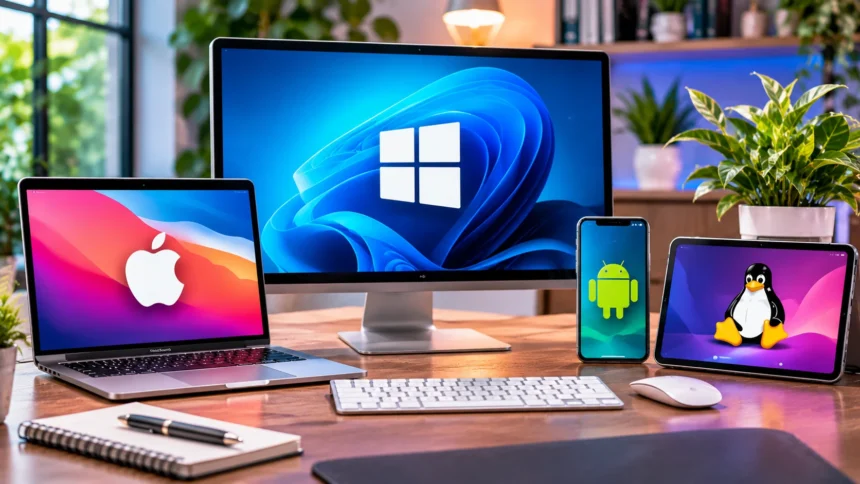
Imagine buying a new laptop and discovering that some of your favorite applications will not work on it. You search for answers and repeatedly encounter the term OS, but nobody explains what it actually means. Suddenly, using your new device feels more complicated than expected.
So, what does OS mean? OS stands for operating system, the essential software that manages your device and allows you to interact with it. Without this software, most computers and smartphones would be difficult to use for everyday tasks.
Understanding operating systems does not require advanced technical knowledge. This guide explains how they work, their main functions, different types, and real-life examples. You will also learn how to identify and choose an operating system that suits your needs.
What Does OS Mean in Computing?
The term OS is commonly used when discussing computers, smartphones, and other digital devices. However, many people use these devices every day without understanding what an operating system actually does. It is the software responsible for managing essential device operations.
An operating system acts as a bridge between users, software applications, and computer hardware. It helps different components communicate and work together. These components include the processor, memory, storage, keyboard, display, and other connected devices.
Think of an operating system as the manager of a busy restaurant. The manager organizes employees, equipment, and customer requests to keep everything running smoothly. Similarly, an OS coordinates computer resources to help users complete their daily tasks.
How Does an Operating System Work?
When you open a browser, play music, or download a document, several processes happen behind the scenes. Managing these processes manually would be extremely difficult. An operating system simplifies them by coordinating hardware and software automatically.
For example, when you open a photo, the operating system helps the application access the stored image. It allocates memory, coordinates processing tasks, and supports the display of the image. These operations happen without requiring you to manage individual hardware components.
The operating system also controls how applications share available resources. When several programs run together, it schedules processing tasks and manages memory usage. This coordination allows devices to handle multiple activities while maintaining a responsive user experience.
Why Do Computers Need an Operating System?
Imagine having a computer with a powerful processor, plenty of memory, and a large storage drive but no operating system. Although the hardware exists, completing ordinary tasks would be difficult. You would lack a convenient environment for running familiar applications.
An operating system makes computer hardware accessible through organized software services and user interfaces. It allows you to open files, install applications, connect to networks, and adjust device settings. These capabilities make modern computers practical for everyday use.
Some specialized electronic devices can operate without a conventional OS by using dedicated firmware. However, general-purpose computers and smartphones typically depend on operating systems. They provide the flexibility required to support many different applications and user activities.
What Are the Main Functions of an Operating System?
You may wonder how your computer manages several activities without requiring constant instructions. From connecting to Wi-Fi to opening documents, many essential operations depend on the OS. Understanding these functions helps explain its importance.
Memory Management
Applications require memory to run, but every device has a limited amount available. The operating system allocates memory to different programs according to their requirements. It also manages memory resources as applications open, close, or change their activities.
Process Management
Multiple applications often compete for access to the processor. The operating system schedules tasks and determines when different processes receive processing time. This allows you to browse websites while listening to music or completing other activities.
File Management
Finding documents would become difficult without an organized storage system. The OS provides tools for creating, opening, moving, renaming, and deleting files. It also manages file systems that determine how information is stored and retrieved.
Device Management
External devices such as printers, keyboards, and headphones need to communicate with your computer. Operating systems use device drivers and other software components to support these connections. This helps compatible hardware function without complicated manual instructions.
Security Management
Unauthorized access can put personal information and important documents at risk. Operating systems provide security features such as user accounts, passwords, access permissions, and updates. These features help protect information when combined with responsible security practices.
User Interface Management
Working directly with computer hardware would be challenging for most users. An operating system provides an interface for interacting with the device. This may include graphical elements such as windows, menus, icons, or text-based command interfaces.
Common Examples of Operating Systems
Choosing a device becomes confusing when you encounter different operating system names. Each platform offers particular features, applications, and compatibility options. Exploring familiar examples can help you understand what makes them different.
Microsoft Windows
Microsoft Windows is a widely used operating system for desktop and laptop computers. It provides a graphical interface with menus, icons, settings, and application windows. Many people use Windows for office work, education, gaming, and general computing.
macOS
macOS is Apple’s operating system for Mac computers. It provides an integrated experience with compatible Apple hardware and services. Creative professionals, students, developers, and everyday users use macOS for various personal and professional activities.
Linux
Linux is technically an operating system kernel used in many complete operating systems called distributions. Popular examples include Ubuntu, Fedora, and Linux Mint. These distributions are used for personal computing, software development, servers, and other applications.
Android
Android is a mobile operating system built around the Linux kernel. It powers smartphones, tablets, televisions, and several other types of connected devices. Android supports a wide range of manufacturers, applications, and device customization options.
iOS
iOS is Apple’s operating system for iPhones. It provides the software environment needed to make calls, use applications, manage files, and access online services. Apple designs iOS specifically for compatible iPhone hardware.
ChromeOS
ChromeOS is Google’s operating system used primarily on Chromebooks. It emphasizes web-based activities, cloud services, and straightforward device management. Depending on the device, it can also support Android applications and Linux-based software development tools.
What Are the Different Types of Operating Systems?
Not every operating system is designed for the same tasks. A smartphone, business server, and industrial machine have different computing requirements. Different OS types exist to address these specific needs and operating environments.
Desktop Operating System
Desktop operating systems are designed for personal computers and workstations. They support activities such as browsing, document editing, software development, and multimedia processing. Windows, macOS, and desktop Linux distributions are common examples.
Mobile Operating System
Mobile operating systems are designed primarily for smartphones and tablets. They focus on touchscreen interaction, wireless connectivity, mobile applications, and power management. Android, iOS, and iPadOS are familiar examples of mobile platforms.
Network Operating System
Network operating systems provide services that help connected computers share resources and communicate. They may manage user accounts, shared files, printers, and network access permissions. Server platforms commonly support these functions within business and educational environments.
Real-Time Operating System
A real-time operating system, or RTOS, is designed to respond to events within specified timing requirements. It is useful in systems where predictable responses are particularly important. Examples include certain industrial controllers, automotive components, and embedded devices.
Embedded Operating System
Embedded operating systems support devices designed for particular functions rather than general computing. They may operate inside smart appliances, networking equipment, or industrial machines. These systems often work with limited hardware resources and specialized software requirements.
Desktop OS vs. Mobile OS: What Is the Difference?
You might notice that an application designed for your computer does not always work on your smartphone. This happens because desktop and mobile operating systems have different designs and requirements. Understanding their differences helps prevent software compatibility problems.
| Feature | Desktop OS | Mobile OS |
|---|---|---|
| Main devices | Laptops and desktops | Smartphones and tablets |
| User interaction | Keyboard, mouse, and sometimes touch | Primarily touchscreen |
| Common examples | Windows, macOS, Linux | Android, iOS, iPadOS |
| Software | Desktop applications | Mobile applications |
| Power management | Depends on device design | Strong focus on battery usage |
| Common activities | Professional work and general computing | Communication and mobile computing |
Desktop operating systems generally support traditional computer workflows and specialized applications. Mobile platforms emphasize portability, touchscreen controls, and efficient power management. However, the capabilities of both categories increasingly overlap as computing technology develops.
What Are the Main Components of an Operating System?
Operating systems may appear to be nothing more than the menus and icons displayed on your screen. However, several internal components work together to provide these visible features. Each component performs a particular role in managing the device.
Some important operating system components include:
- Kernel: Manages essential interactions between software and hardware resources.
- Device drivers: Help the OS communicate with hardware components.
- File system support: Organizes and manages stored information.
- User interface: Allows users to interact with the system.
- Process scheduler: Coordinates the execution of computing tasks.
- Memory manager: Controls the allocation and use of memory.
- System utilities: Provide tools for configuring and maintaining the device.
The kernel is particularly important because it manages many fundamental system operations. Other components build upon these services to provide a usable computing environment. Together, they allow hardware, applications, and users to interact effectively.
Operating System vs. Application Software
Many beginners confuse operating systems with the applications installed on their devices. Although both are software, they perform different functions. Recognizing this distinction helps you understand why certain programs require specific operating systems.
An operating system is a form of system software that manages hardware resources and provides services to applications. Application software helps users complete particular tasks. Examples include web browsers, photo editors, spreadsheets, and messaging applications.
| Feature | Operating System | Application Software |
|---|---|---|
| Main purpose | Manage system resources | Perform specific user tasks |
| Software category | System software | Application software |
| Examples | Windows, Android, macOS | Chrome, Word, Photoshop |
| Hardware interaction | Manages hardware access | Usually relies on OS services |
| Primary role | Support device operations | Help users complete activities |
Think of an operating system as a kitchen and applications as the tools used to prepare different meals. The kitchen provides an organized working environment, while each tool serves a particular purpose. Both contribute to completing the task.
Advantages of Using an Operating System
Managing computer resources without suitable software would require considerable technical knowledge. Users would need to handle many complicated processes independently. Operating systems remove much of this difficulty by providing organized tools and automatic resource management.
The main advantages include:
- Simplifies interaction with computer hardware.
- Supports multiple applications and activities.
- Organizes files and storage resources.
- Provides security and access management features.
- Supports communication with compatible external devices.
- Manages processor and memory resources.
- Provides a convenient environment for installing software.
These benefits make operating systems valuable for personal and professional computing. Users can focus on completing their work instead of managing technical processes manually. A suitable OS can also help improve productivity and device usability.
Common Operating System Problems and Solutions
Even reliable operating systems can experience performance issues, compatibility problems, or unexpected errors. These situations become frustrating when they interrupt important work. Identifying the possible cause is often more helpful than immediately replacing the device.
| Common Problem | Possible Solution |
|---|---|
| Slow computer performance | Close unnecessary applications and review storage space |
| Frequent application crashes | Update the affected application and OS |
| Software compatibility problems | Check application system requirements |
| Unresponsive programs | Close the affected application using system tools |
| Device connection issues | Check connections and compatible drivers |
| Insufficient storage | Remove unnecessary files after backing up important data |
Regular system maintenance can help prevent some of these problems. Install trusted security updates, maintain backups, and download applications from reliable sources. If problems continue, consult the device manufacturer’s support documentation or a qualified technician.
How to Choose the Right Operating System
Selecting an operating system simply because it is popular may lead to unnecessary compatibility problems. Different users have different requirements, budgets, and software preferences. The best choice depends on the activities you need to complete.
Consider these factors before making a decision:
- Software compatibility: Check whether your required applications support the OS.
- Hardware requirements: Ensure your device meets the recommended specifications.
- Ease of use: Choose an interface that suits your experience and preferences.
- Security support: Look for a platform that receives security updates.
- Budget: Consider device, software, and licensing costs.
- Technical support: Check the availability of reliable help and documentation.
For example, someone who relies on Windows-specific business software should check compatibility before switching to another platform. A student who primarily uses web applications may have more flexibility. Matching your operating system to your actual needs helps avoid unnecessary expenses.
How to Find Which Operating System You Are Using
Have you ever been asked which operating system you use while troubleshooting a technical problem? You might know your device’s brand but not its software version. Fortunately, finding this information usually takes only a few moments.
Here is how to check common operating systems:
- Windows: Open Settings, select System, and choose About.
- macOS: Open the Apple menu and select About This Mac.
- Android: Open Settings and look for About Phone and Android Version.
- iPhone: Open Settings, select General, and choose About.
- Linux: Open your system’s About section or check its distribution information.
Menu names may vary depending on your device and software version. Knowing your OS version helps when installing applications, checking compatibility, or requesting technical support. It also makes identifying available software and security updates easier.
Frequently Asked Questions
1. What does OS mean in simple words?
OS stands for operating system. It is the software that manages a device’s hardware and provides an environment where users can interact with applications and complete everyday tasks.
2. What are five examples of operating systems?
Five common examples of operating systems are Windows, macOS, Android, iOS, and Ubuntu. These platforms support different devices and computing requirements, including personal computers, smartphones, and professional workstations.
3. Can a computer work without an operating system?
A computer can execute certain programs without a conventional operating system. However, most personal computers require one to provide convenient access to applications, hardware resources, and everyday computing features.
4. Is Google Chrome an operating system?
Google Chrome is a web browser, not an operating system. ChromeOS is a separate operating system developed by Google that powers Chromebooks and supports various computing activities.
5. Which operating system is best for beginners?
Windows, macOS, and ChromeOS can all be suitable for beginners, depending on their devices and requirements. The best option offers compatible applications, an understandable interface, and reliable technical support.
Conclusion
Understanding what OS means helps you appreciate how computers, smartphones, and other digital devices perform everyday tasks. An operating system manages hardware, supports applications, organizes information, and provides an accessible environment for interacting with technology.
Different operating systems serve different purposes, and no single platform is ideal for everyone. Windows, macOS, Linux distributions, Android, and iOS all have their own capabilities. Understanding these differences helps you make more informed technology decisions.
Start by checking the operating system installed on your current device and exploring its basic settings. Learn how to manage applications, organize files, and check for software updates. These simple steps will help you become a more confident and knowledgeable technology user.